
f5

Voice workflow

Build a plan for f5-tts comfyui

A f5-tts comfyui workflow needs more than a model name on a node. Start by identifying the text, reference audio, model files, and compatible nodes you need, then test a short line before building a larger graph.

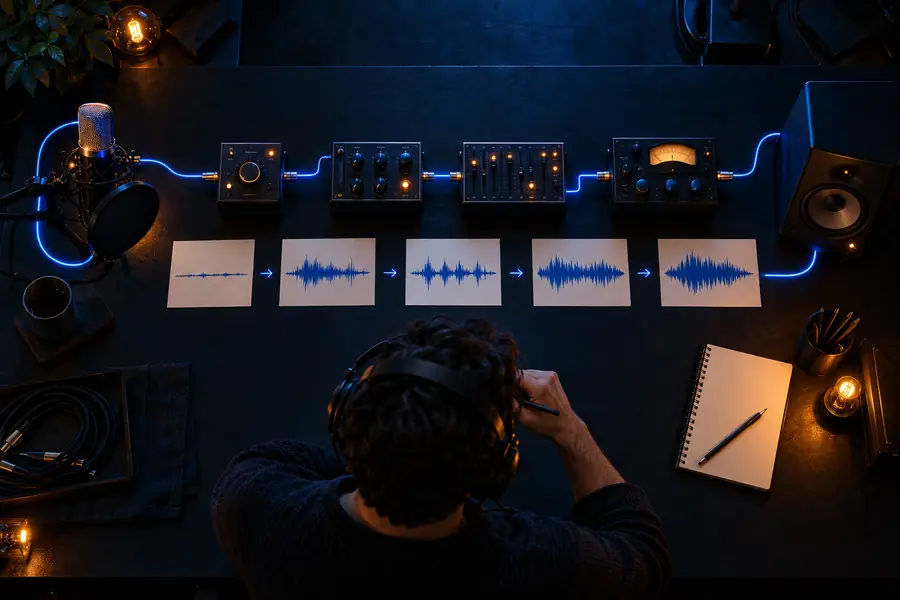
Illustration of a voice-generation workflow

what this scenario must deliver (table)

Treat each card as a required outcome, not a promise that a particular ComfyUI installation already supports it. The exact nodes and inputs depend on the extension you choose.

Visual storyteller

Pair a spoken line with an image sequence while keeping the narration text easy to revise. Save the text and generated audio as separate assets so a visual edit does not require rebuilding the voice setup.

A short, reviewable narration clip that can be matched to a scene before longer audio is made.
what is f5 tts android

Community video editor

Prepare a distinct voice line for an announcement, then check where playback actually happens. Producing an audio file in ComfyUI is different from changing a voice inside a chat app.

An exportable clip and a clear boundary between audio production and platform playback.

How do you change your Discord TTS voice?

Mobile content maker

Prototype speech on a workstation and move only the finished asset into a phone-based editing workflow. Do not assume a desktop node graph will run on the phone.

A voice asset that can be reviewed alongside mobile video without requiring the graph on the device.

what is f5 tts android

Discord event organizer

Create a brief spoken cue for a scheduled event and listen for names, timing, and unwanted pauses. Keep the finished recording separate from Discord's built-in text-to-speech behavior.

A checked announcement file ready for use through an appropriate playback method.

How do you change your Discord TTS voice?

each item

Check the dependency chain before adding effects, automation, or a long script to a ComfyUI graph.

  1. 1

    Verify the node and model

    Find the specific ComfyUI extension you intend to use and read its installation notes. Confirm that its supported F5 TTS model files, dependencies, and input fields match your setup; this site does not provide a node package.

  2. 2

    Prepare the voice inputs

    Write one short test sentence. If your chosen workflow uses reference speech, use audio you have permission to use and supply any matching transcript the node requires. Check that the recording is intelligible before troubleshooting synthesis.

  3. 3

    Render and inspect

    Generate a short clip first, listen to its pronunciation and pacing, and confirm where the node saves its output. Only then expand the script or connect the result to other ComfyUI processing steps.

quality bar

The goal is an audible, usable line—not merely a graph that finishes running. Compare the source plan with the asset you can actually listen to.

Illustrative ComfyUI voice-workflow planning image
Inputs and graph
Illustrative audio-example review image
Reviewed voice asset

Images illustrate workflow stages; they are not a verified before-and-after recording. Listen for complete words, natural pauses, appropriate volume, and a voice you have the right to use.

Inputs and graphReviewed voice asset

common rework

Most avoidable rework starts with an assumption about compatibility, input quality, or where the finished audio can be used.

1

No guaranteed ComfyUI integration

Naming F5 TTS does not install compatible nodes or establish that every extension supports the same model version. A graph shared by someone else may also depend on missing custom nodes.

What to do instead

Read the extension's own documentation, verify its dependencies, and test its smallest documented workflow first.

2

No automatic repair for poor reference audio

Noise, overlapping speakers, and an inaccurate transcript can make a voice test harder to assess. Repeating the same generation with unchanged inputs may not fix the underlying problem.

What to do instead

Use a clear, permitted recording and check any required transcript against what is actually spoken.

3

No direct change to another app's TTS

Producing a clip in ComfyUI does not replace Discord's built-in voice or make a node graph run natively on Android. Those are separate playback and platform questions.

What to do instead

Export a finished audio asset, then check the destination app's supported playback or editing options.

If you want to evaluate generated speech without assembling a ComfyUI node graph first, explore the linked voice product. Check its current capabilities and terms there before committing to a production workflow.

Try a voice-first route

  • Test a short line before a full script
  • Review pronunciation and pacing by listening
  • Keep source text and finished audio organized
Explore voice generation

scenario FAQ

Do not assume it is built in. A ComfyUI workflow may rely on a third-party custom node, and compatibility depends on that node's documentation and the model files it supports. Verify the installation instructions for the particular extension you plan to use.

Start with a working ComfyUI installation, a compatible extension, and the model assets specified by that extension. Prepare a short text sample and, if the workflow calls for it, permitted reference audio and its corresponding transcript. Requirements can differ between node implementations.

A completed graph does not prove the audio meets your quality bar. Listen for clipped speech, wrong pronunciation, awkward pauses, and problems traceable to the reference recording or transcript. Change one input at a time and rerun a short test so you can identify what helped.

That depends on the output your chosen node saves and the requirements of the destination application. Locate and listen to the actual audio file before planning a handoff. Also confirm that your use of the model and any reference voice is permitted.

Create speech
Create speech